Nest Ready vs a PDF to DXF converter
We put one engineering PDF through a free PDF to DXF converter and through Nest Ready. The converter turned the whole sheet into CAD entities, at 3.78 times true size. Nest Ready gave the part alone, at true size. Both files are on this page to download and open in your own CAD.
No card required. Bring your own drawings.
What happens when the same drawing goes through both?
A bracket drawing, 160 × 80 mm with four holes and a slot, drawn at 1:1 on an A3 sheet with dimensions, notes, a revision table and a title block. The kind of PDF a customer sends with an enquiry.
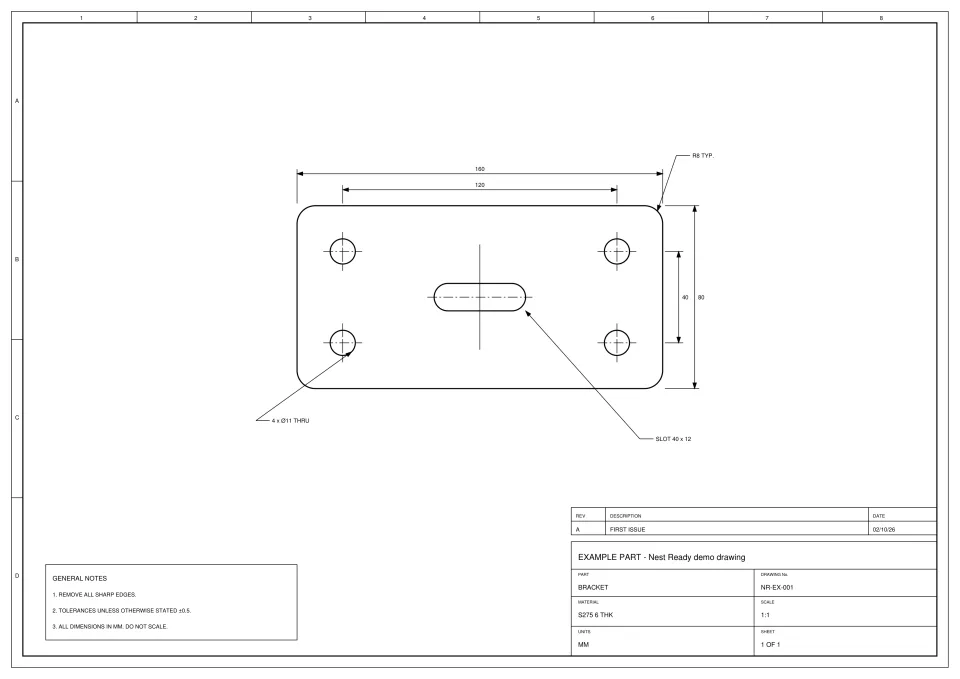
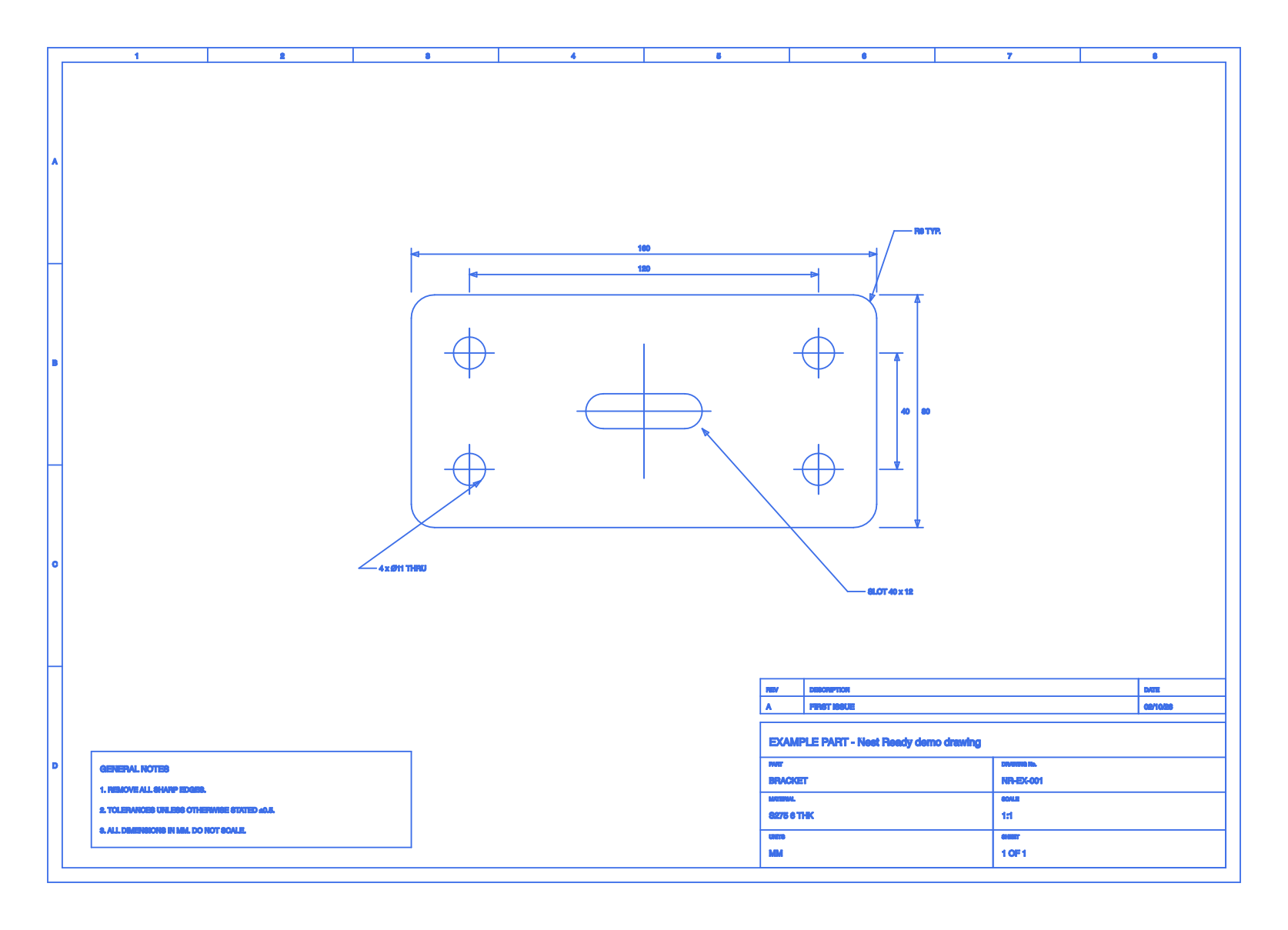

The converter did what it’s built to do: it translated every mark on the page. The bracket is in there, along with everything drawn around it, and the text has come across as letter shapes made of lines and curves. Nest Ready found the part on the sheet, built it from the dimensions written on the drawing, checked its outline and holes against the PDF’s own lines, and exported only the part.
What’s inside each DXF?
Measured from the two files above, not estimated. These are the numbers your CAD/CAM software meets when it opens them.
| Measured | Inkscape 1.4.4 | Nest Ready |
|---|---|---|
| Entities | 4,657: 2,418 lines and 2,239 splines | 16: 6 lines, 6 arcs and 4 circles |
| Layers | 1 layer, “1” | 2 layers: INNER and OUTER |
| Holes | No circles: each hole is a ring of spline segments | 4 circles, one entity per hole |
| Scale | 3.78 units to the millimetre: 3.78 times too big in a millimetre drawing | 1 unit to the millimetre: true size |
| File size | 959 KB | 7 KB |
| Left to do | Delete the border, title block, revision table, notes, dimensions and centre lines; scale it to millimetres; check the holes and corners came out as you need | Check it against the drawing |
How does a page converter differ from Nest Ready in general?
One drawing is one drawing. These are the differences that hold across the drawings fabricators are sent.
| Compared on | PDF to DXF converter | Nest Ready |
|---|---|---|
| What it converts | The page: every line, curve and character on it | The part, and nothing else |
| Dimensions, notes and title block | Converted along with the part, for you to delete | Left behind |
| Layers | Whatever the PDF carried, often one layer for everything | OUTER for the profile, INNER for holes and cut-outs |
| Units and scale | Depends on the tool and its settings; worth checking every time | Millimetres at true size, with inch drawings converted |
| Several parts on one sheet | One file with all of them in it | Each part found, with its own DXF |
| Scanned PDFs | Nothing to convert: a scan holds pixels, not lines | Read as a whole sheet, with the part built from the written dimensions and held for review |
| Photos and sketches | Not done | Built from the sizes written on them, with anything estimated flagged |
| Checking | Up to you, line by line | Anything uncertain is flagged for review; you still check every DXF before cutting |
| Cost | Often free, or a licence or subscription | Per part downloaded, with rejected parts free and 25 parts free to start |
Why converters bring the whole drawing across is a property of PDFs themselves, not a fault in any one tool. Our guide explains why PDF to DXF converters import the whole drawing.
When is a PDF to DXF converter the better tool?
When you want the page, not the part.
- You need the whole drawing in CAD, title block and dimensions included, to archive it or mark it up.
- The PDF already holds little more than the part, such as a profile exported on its own.
- You’re converting artwork, a logo or a sign rather than an engineering drawing.
If you’re turning customer drawings into parts to quote, program or cut, drawing after drawing, that’s the job Nest Ready is built for.
Questions about converters and Nest Ready
What to know before you send in your first drawing.
Which converter did you use, and why that one?
Inkscape 1.4.4: it’s free, it runs on Windows, macOS and Linux, and it’s often suggested when someone asks how to turn a PDF into a DXF. We used its own PDF import and its “Desktop Cutting Plotter (AutoCAD DXF R14)” export, the one usually suggested for cutting machines, with every option at its default. Other converters differ in the details: some rebuild arcs, some ask for a scale. But a page converter converts the page, so the drawing around the part comes across with it.
Couldn’t I just change the converter’s settings?
Some of it, yes. The units can be set, and curves can be flattened into short lines. No setting tells a converter which lines are the part, though: the border, the title block’s boxes and a dimension line are lines just as the profile is, so they come across too, and the clean-up stays with you.
Is Nest Ready’s DXF ready to cut?
It’s the part’s geometry, at true size, for your own CAD/CAM or nesting software. Toolpaths, cutting parameters and nesting stay in your software, and you should check every DXF against the drawing before cutting. Anything Nest Ready isn’t sure of is flagged for review.
Can I open both files myself?
Yes. Both DXFs are above to download, exactly as each tool produced them. Open them in your own CAD and compare.
What about drawings that aren’t vector PDFs?
A converter that reads PDF linework has nothing to read in a scan or a photo. Nest Ready builds the part from the dimensions written on it, and holds a part from a scan for review by default. A part from a scan, photo or sketch counts as 5 parts, because it has no drawn lines in the file to be checked against and takes more checking.
Read more
- PDF to DXF How Nest Ready turns an engineering PDF into the part’s DXF.
- Why converters import the whole drawing What’s on a drawing page besides the part, and why a PDF can’t say which is which.
- Scanned PDF to DXF The part built from the dimensions written on the scan.
- Pricing Pay for the parts you download. Rejected parts are free.
Convert your next engineering drawing to DXF.
Upload a PDF, scanned drawing or drawing image and see the part geometry Nest Ready can extract.