Bracket
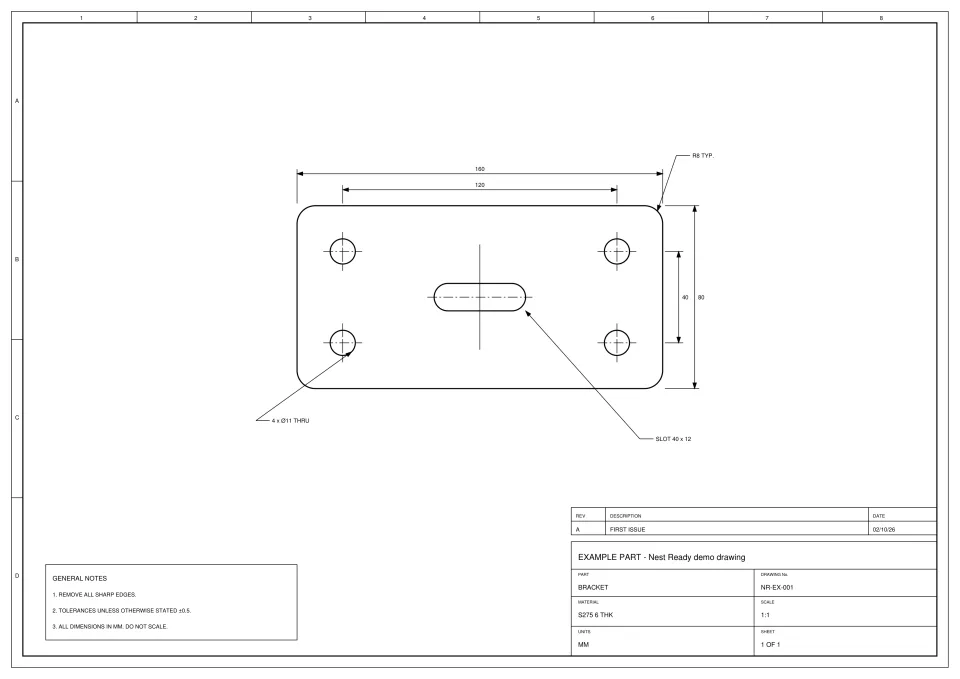
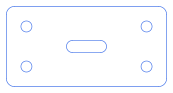
- Time
- about 15 s from submission to ready
- Features
- outer profile, 4 holes, 1 slot
- Flags
- None
- Review
- None: no flags, downloaded as extracted
You upload the customer’s drawing as a PDF, a scan or a photo. Nest Ready finds the part, extracts its outer profile and internal features, leaves the dimensions, notes and title block behind, and shows the result beside the drawing. Anything uncertain is flagged for review, and you download a DXF for your CAD/CAM or nesting software, in around 15 seconds per part on average.
No card required. Bring your own drawings.
Seven steps from the file your customer sent to geometry your own software can use.
Send the customer’s drawing as a PDF, JPG or PNG: up to 25 MB a file and up to 50 files in one batch.
Nest Ready works out whether a page is a vector drawing exported from CAD, a scan, or a photo of a drawing, and handles each kind its own way.
It picks out which closed outlines on the sheet are parts, as opposed to borders, frames and other drawing furniture.
On a vector page the lines and arcs are read straight from the PDF. On a scan they are traced from the pixels. A photo is squared up first.
Dimensions, annotations, text, centre lines, borders, title blocks and notes are not carried into the DXF.
The part is shown beside the drawing with an overlay and measurements. Anything uncertain is flagged for review.
Each part comes out as its own DXF, at true size in millimetres, for your CAD/CAM or nesting software. Check every DXF against the drawing before cutting.
It extracts the part, not the page. A converter that turns every line into CAD brings the whole drawing with it; Nest Ready keeps only the geometry needed to make the part.
Check every DXF against the drawing before cutting.
A PDF is only a container. Some hold real drawing geometry; others hold a picture of a drawing. Nest Ready checks each page and takes the route that suits it.
| Source | What the file holds | How Nest Ready gets the geometry |
|---|---|---|
| Vector PDF | Lines, arcs and text stored as drawing data, usually exported from CAD. | Read directly from the PDF. Nest Ready then chooses which closed outlines are parts. |
| Scanned PDF, JPG or PNG | A picture of the drawing: pixels, with no lines to read. | Traced from the pixels. The text is read for its dimensions, and the scale comes from them. |
| Photo of a drawing | Pixels again, plus perspective and lens distortion from the camera. | Squared up using the drawing’s long straight lines and border, then traced like a scan. The sheet is assumed to lie flat. |
| Hand sketch | A sketch with its sizes written on it. | Built from the numbers written on the sketch, never traced to size. You confirm each size before the part can be accepted. |
Parts from scans, photos and sketches take more reading and more checking, so each counts as 5 parts against your allowance. A part from a vector PDF counts as one. How parts are charged.
From the dimensions written on the drawing. You don’t enter a scale before uploading.
A scan or photo has no built-in size, so Nest Ready reads the dimensions on the drawing and works out the scale from them. A scale only stands when at least two dimension readings agree.
Every part from a scan or photo shows its stated accuracy, as a plus-or-minus figure in millimetres. A page too coarse for the drawing’s scale is refused, with the reason and what would fix it. If a part is flagged because its scale is uncertain, you can set its true width or height in review.
More on scanned drawings: scanned PDF to DXF.
Review shows the source beside the extracted part, with an overlay and measurements, and gives you a short set of fixes.
Each fix answers the issue a part was flagged for. There’s no free-form editing and no way to draw in a missing feature: if a part needs more than these fixes, re-run it with a note or reject it. Rejected parts are left out of the download and never charged.
Review is advice, not a gate. Parts nobody has reviewed still download; when a drawing has several parts, the README in the zip marks them NEEDS REVIEW. Check every DXF against the drawing before cutting.
Plain R12 geometry with nothing to strip out: no text, dimensions or splines.
OUTER; holes and cut-outs on INNER.The same bracket drawing, as a vector PDF and as a scan. The scanned example will be a generated drawing, printed and scanned on an office scanner. Example drawings converted by Nest Ready: the drawing, the DXF it produced and the facts of the run. Cards marked as placeholders are still to come.
 Placeholder: real conversion coming soon
 It produces part geometry. Everything after that stays in the software and with the people you already have.
What to know before you send in your first drawing.
Around 15 seconds per part, on average. It is an average, not a promise: some drawings take longer.
No. Anything uncertain is flagged for review, and parts from scans and photos are flagged by default. Parts nobody has reviewed still download; when a drawing has several parts, the README in the zip marks them NEEDS REVIEW. Check every DXF against the drawing before cutting.
It refuses the page and tells you why and what would fix it: for example, rescanning at 200 dpi or more when the writing is too small to read, or photographing the sheet from straight above with its border in the picture.
Yes. Each page is read on its own, so a set can mix vector pages and scanned ones.
Yes, as a JPG or PNG of the drawing. HEIC photos aren’t accepted: save the photo as a JPG first. Location and camera details are stripped from the image before it is uploaded.
Bring the drawing. Leave with the part.
We'd like to use Google Analytics cookies to see which pages help people find Nest Ready. Nothing is set unless you accept. Cookie policy